Contract Verification
Verifying your smart contract on WireScan makes your source code publicly accessible and allows users to interact with your contract directly through the block explorer. This tutorial will guide you through the verification process step by step.
Why Verify Your Contract?
Contract verification provides several important benefits:
- Transparency: Users can review your contract’s source code before interacting with it
- Trust: Verified contracts demonstrate legitimacy and build user confidence
- Direct Interaction: Users can read and write to your contract directly from WireScan
- Debugging: Easier to debug and understand contract behavior on-chain
Prerequisites
Before you begin, ensure you have:
- A deployed smart contract on WireFluid
- The contract’s source code (Solidity files)
- The exact compiler version used during deployment
- Constructor arguments (if any were used during deployment)
- The contract address from your deployment
Important: Flattening Your Contract
If your contract uses external libraries or imports multiple files, you MUST flatten your contract before verification.
What is Flattening?
Flattening combines all your contract files and their dependencies into a single file. This is essential when:
- Your contract imports other contracts (e.g., OpenZeppelin libraries)
- You use external libraries
- Your project has multiple Solidity files
When to Flatten
You MUST flatten if:
- You’re using OpenZeppelin contracts (
@openzeppelin/contracts) - You import other local contracts
- Your contract uses external libraries
- You have multiple
.solfiles in your project
You can skip flattening if:
- Your contract is a single file with no imports
- You only use built-in Solidity features
Best Practice: Deploy Flattened Contracts
Important: If your contract uses libraries, it’s recommended to deploy the flattened version of your contract, not the original multi-file version. This ensures:
- Easier verification process
- Consistency between deployment and verification
- No issues with library linking
Step-by-Step Verification Process
1. Navigate to Your Contract
First, you need to find your deployed contract on WireScan:
- Go to WireScan Explorer
- In the search bar, paste your contract address
- Press Enter or click the search icon
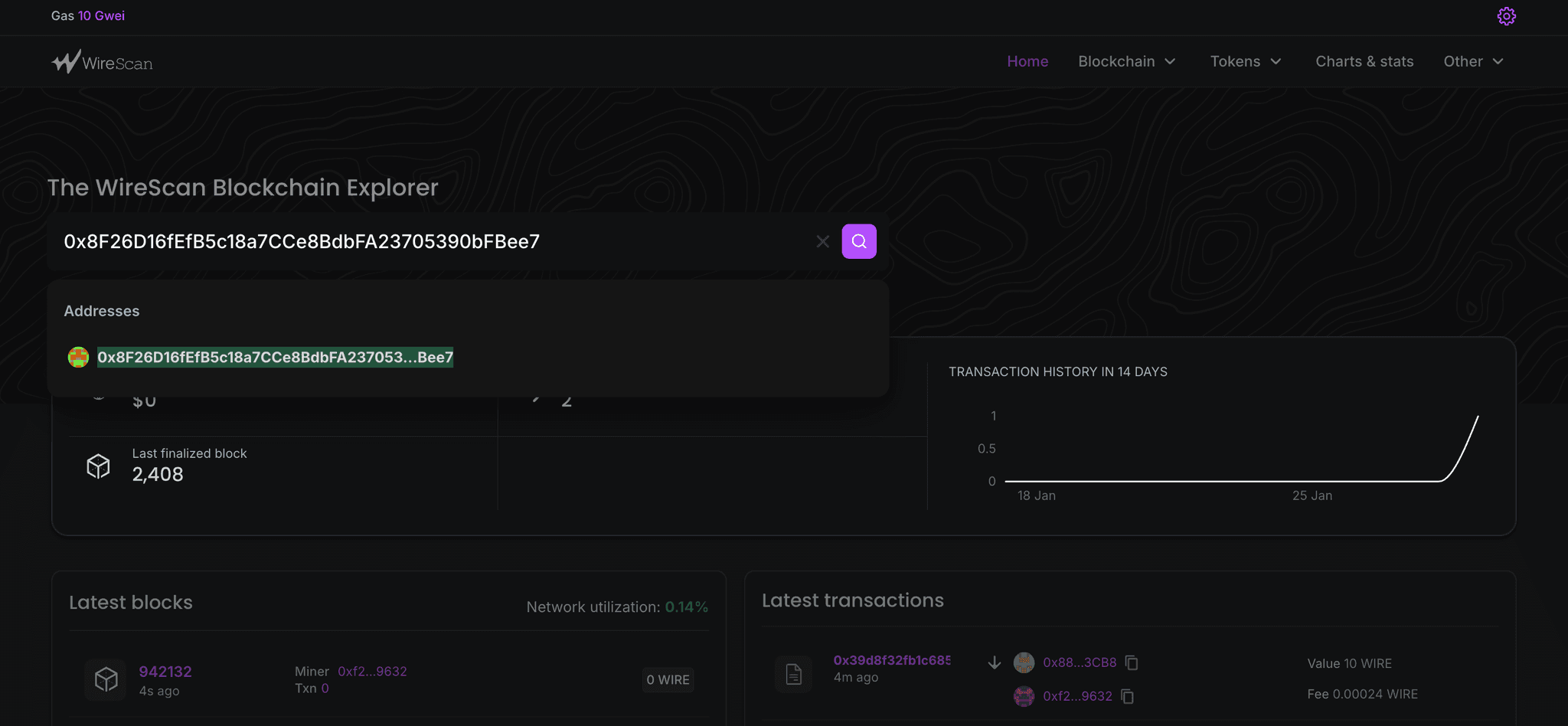
2. Access the Contract Tab
Once you’re on your contract’s page:
- You’ll see several tabs: Details, Contract, Transactions, Token transfers, etc.
- Click on the Contract tab
- You should see the contract bytecode displayed
- Look for the “Verify & publish” button in the top-right corner
- Click this button to start the verification process
3. Fill in Contract Details
On the verification page, you’ll need to provide the following information:
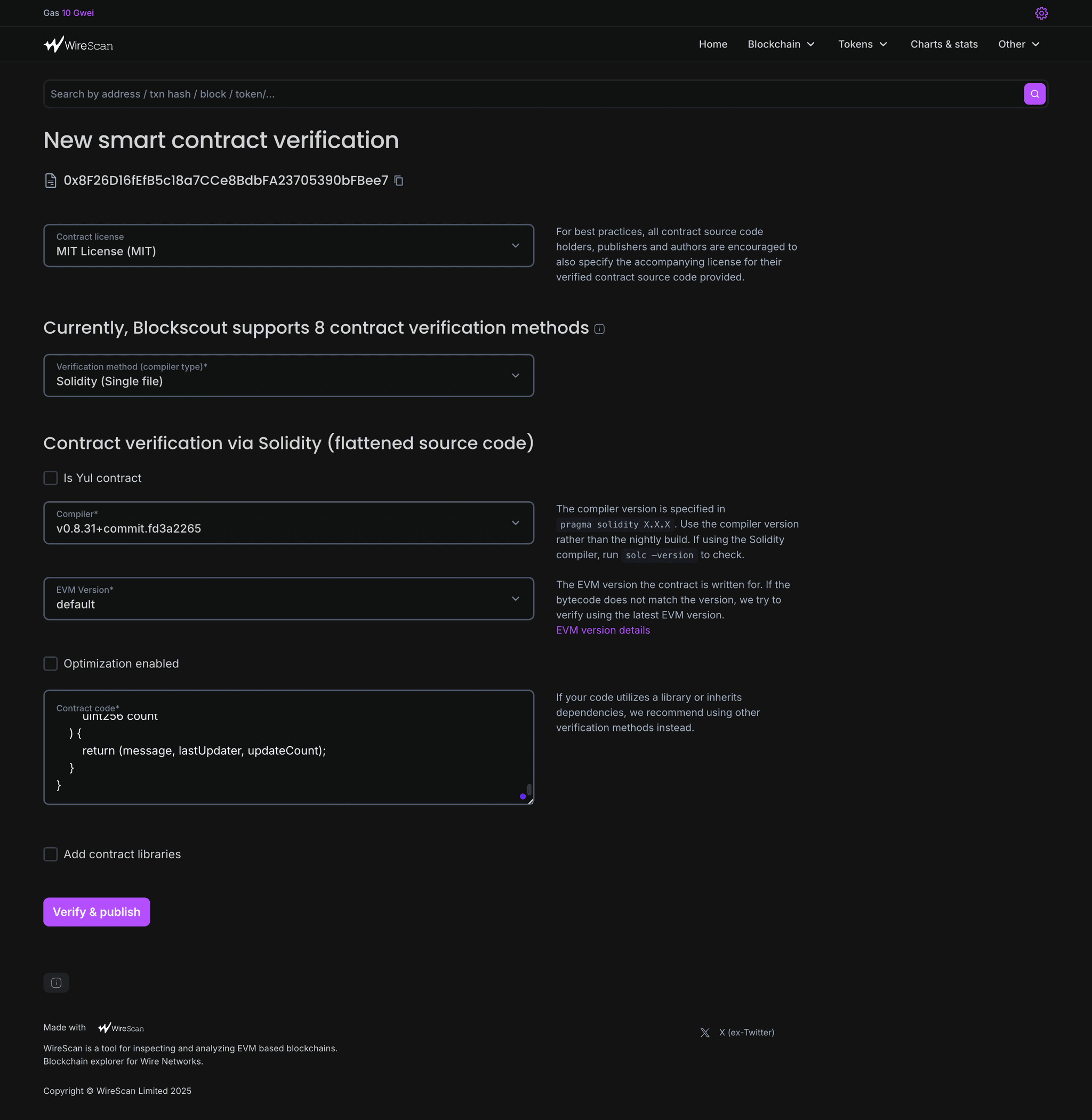
Contract License
Select the appropriate license for your smart contract from the dropdown menu. Common options include:
- MIT License (MIT)
- GNU General Public License v3.0 (GPL-3.0)
- Apache License 2.0
- No License (None)
- Unlicense
Tip: If you’re unsure, MIT License is a permissive option commonly used for open-source projects.
Verification Method
WireScan supports multiple verification methods. Select “Solidity (Single file)” from the dropdown menu if you have a single flattened contract file.
Other available methods include:
- Solidity (Multi-part files)
- Solidity (Standard JSON input)
- Vyper contract
- And more…
4. Configure Compiler Settings
Is Yul Contract
Leave the “Is Yul contract” checkbox unchecked unless you’re specifically using Yul intermediate language.
Compiler Version
This is crucial for successful verification. Select the exact compiler version you used to compile your contract.
Example: v0.8.31+commit.fd3a265
Important: The compiler version must match exactly with what you used during deployment. You can find this in your Hardhat config or Remix IDE settings.
To check your compiler version:
For Hardhat:
// hardhat.config.js
module.exports = {
  solidity: "0.8.31",  // Your compiler version
};
For Remix IDE: Check the “Solidity Compiler” tab to see which version was used.
EVM Version
Select the appropriate EVM version from the dropdown. The default option is usually sufficient for most contracts.
Common options:
default(recommended for most cases)parislondonberlin
Optimization Enabled
Check this box if you enabled optimization during compilation.
For Hardhat users:
// hardhat.config.js
module.exports = {
  solidity: {
    version: "0.8.31",
    settings: {
      optimizer: {
        enabled: true,  // If this is true, check the box
        runs: 200
      }
    }
  }
};
For Remix users: Check the “Solidity Compiler” tab to see if optimization was enabled.
5. Add Your Contract Code
In the “Contract code” text area, paste your flattened contract source code.
Flattening with Hardhat
If you’re using Hardhat and your contract imports libraries or other contracts:
Step 1: Flatten your contract
npx hardhat flatten contracts/MyContract.sol > flattened.solStep 2: Clean up the flattened file
Open flattened.sol and remove duplicate SPDX license identifiers. Keep only one at the top:
// SPDX-License-Identifier: MITStep 3: (Recommended) Deploy the flattened contract If you haven’t deployed yet and your contract uses libraries:
# Use the flattened contract for deployment
npx hardhat run scripts/deploy.js --network wirefluid
Step 4: Copy the flattened code
Copy the entire contents of flattened.sol and paste it into the WireScan verification form.
Flattening with Remix IDE
Remix provides a built-in flatten feature that’s easy to use:
Step 1: Right-click on your contract file
- In the Remix File Explorer (left sidebar)
- Right-click on your main contract file (e.g.,
MyToken.sol) - Select “Flatten” from the context menu
Step 2: Remix creates a flattened file
- Remix will automatically create a new file named
MyContract_flattened.sol - This file contains all imports inline in the correct order
Step 3: Review the flattened file
- Open the flattened file in Remix
- Check that all dependencies are included
- Ensure there’s only one SPDX license identifier at the top
Step 4: (Recommended) Deploy the flattened contract If your contract uses libraries and you haven’t deployed yet:
- Select the flattened contract in Remix
- Compile it first to ensure it works
- Deploy the flattened version to WireFluid
Step 5: Copy the flattened code
- Select all the code from the flattened file
- Copy it (Ctrl+C or Cmd+C)
- Paste it into the WireScan “Contract code” text area
Example of Flattened Contract Structure
Your flattened contract should look like this:
// SPDX-License-Identifier: MIT
pragma solidity ^0.8.31;

// All imported contracts are now inline

// OpenZeppelin Context contract
abstract contract Context {
    function _msgSender() internal view virtual returns (address) {
        return msg.sender;
    }
    // ... rest of Context code
}

// OpenZeppelin IERC20 interface
interface IERC20 {
    function totalSupply() external view returns (uint256);
    // ... rest of IERC20 code
}

// Your main contract
contract MyToken is Context, IERC20 {
    // Your contract code here
}
Important Notes:
- All imports are replaced with the actual code
- Dependencies appear before the contracts that use them
- Only one SPDX license identifier at the top
- No
importstatements should remain
6. Add Constructor Arguments (If Applicable)
If your contract required constructor arguments during deployment, you need to provide them in ABI-encoded format.
Example: Token Contract with Constructor
If you deployed a token with a constructor like this:
constructor(string memory name, string memory symbol, uint256 initialSupply) {
    _name = name;
    _symbol = symbol;
    _mint(msg.sender, initialSupply);
}
And you deployed it with:
const token = await Token.deploy("MyToken", "MTK", 1000000);You would need to encode these arguments. You can use tools like:
- HashEx Online ABI Encoder
- Hardhat scripts
- Web3.js or Ethers.js libraries
Encoding with Ethers.js:
const ethers = require('ethers');
const abiCoder = ethers.AbiCoder.defaultAbiCoder();

const encoded = abiCoder.encode(
  ['string', 'string', 'uint256'],
  ['MyToken', 'MTK', 1000000]
);

console.log(encoded);
Paste the resulting hex string (without 0x prefix) into the constructor arguments field.
7. Add Contract Libraries (Optional)
If your contract uses external libraries, check the “Add contract libraries” checkbox and provide the library details:
- Library name
- Library address on WireFluid
Example:
Library Name: SafeMath
Library Address: 0x1234...5678
8. Submit for Verification
Once all fields are filled out correctly:
- Review all your inputs
- Click the “Verify & publish” button at the bottom
- Wait for the verification process to complete (usually takes a few seconds)
Verification Success
If verification is successful, you’ll see:
- A green checkmark next to your contract address
- The “Contract” tab will now show:
- Read Contract: View all public/external view functions
- Write Contract: Interact with state-changing functions
- Code: Your verified source code
Users can now read your contract code and interact with it directly through WireScan!
Common Verification Errors
Error: Bytecode Mismatch (Most Common with Libraries)
Problem: The compiled bytecode doesn’t match the deployed bytecode, especially when using libraries.
Solution:
- Make sure you deployed the flattened version of your contract
- If you deployed the non-flattened version, redeploy using the flattened contract
- Ensure the code you’re verifying is identical to what was deployed
Error: Compiler Version Mismatch
Problem: The compiled bytecode doesn’t match the deployed bytecode.
Solution: Double-check your compiler version matches exactly with what you used during deployment.
Error: Constructor Arguments Invalid
Problem: Constructor arguments are incorrectly encoded or missing.
Solution: Use proper ABI encoding for your constructor arguments. Make sure the types and order match your constructor.
Error: Source Code Does Not Compile
Problem: The provided source code has syntax errors or missing dependencies.
Solution:
- Ensure your flattened contract includes all dependencies
- Compile the flattened contract locally first to verify it works
- Check that you removed duplicate SPDX identifiers (keep only one)
Error: Optimization Settings Mismatch
Problem: The optimization settings don’t match deployment configuration.
Solution: Verify your optimization settings (enabled/disabled and number of runs) match your deployment.
Error: Library Address Mismatch
Problem: External library addresses don’t match or weren’t provided.
Solution:
- Use the flattened contract instead of managing libraries separately
- If you must use external libraries, provide the exact library addresses used during deployment
Tips for Successful Verification
Critical: Deploy Flattened Contracts When Using Libraries
If your contract uses external libraries or imports:
- Flatten FIRST before deployment
- Deploy the flattened contract to WireFluid
- Verify using the same flattened code
This ensures the bytecode matches exactly and verification succeeds on the first try.
Why this matters:
- Non-flattened contracts with libraries can have linking issues
- Verification requires the exact source code that produced the deployed bytecode
- Flattening before deployment eliminates verification mismatches
Other Tips
- Keep deployment records: Save your deployment configuration, compiler settings, and constructor arguments
- Test compilation locally: Compile your flattened contract locally before submitting for verification
- Match settings exactly: Compiler version, EVM version, and optimization must match deployment
- Remove duplicate licenses: Flattening may create multiple
SPDX-License-Identifiercomments - keep only one at the top - Use Remix flatten feature: Right-click on your contract file in Remix and select “Flatten” for easy flattening
Verifying Multiple Contracts
If you deployed multiple contracts (e.g., token contract and a vault contract), you need to verify each one separately by following these steps for each contract address.
Next Steps
After verifying your contract:
- Share your verified contract link with users to build trust
- Users can interact with your contract through WireScan’s “Read Contract” and “Write Contract” interfaces
- Consider writing documentation about your contract’s functions
- Monitor your contract’s activity through WireScan’s transaction history
Additional Resources
Need help? If you encounter issues during verification, check your deployment settings carefully or reach out to the WireFluid community for assistance.